In this release
A good layout takes Forky AI a little while: it reads the building, places the zones around the doors and columns, and checks the aisles before it draws a thing. Until now that time was a spinner. You asked, you waited, and the design arrived all at once.
v1.9.0 shows the work. Forky AI thinks out loud — short lines on what it is doing while it plans, then the design and the reply. RackCity AI fits on a phone, with the canvas full screen and a menu made for a thumb. And Forky AI's answers open what you asked about: ask about decking and one click takes you to the decking setting.
Forky AI Thinks Out Loud
Ask Forky AI for a layout and the chat no longer sits still. While it works, a Thinking panel opens under your message with a running clock, and one short line appears at a time as Forky AI plans: where the office goes, how the selective racking splits around it, which side the push-back zone takes. You can read along, or get on with something else.
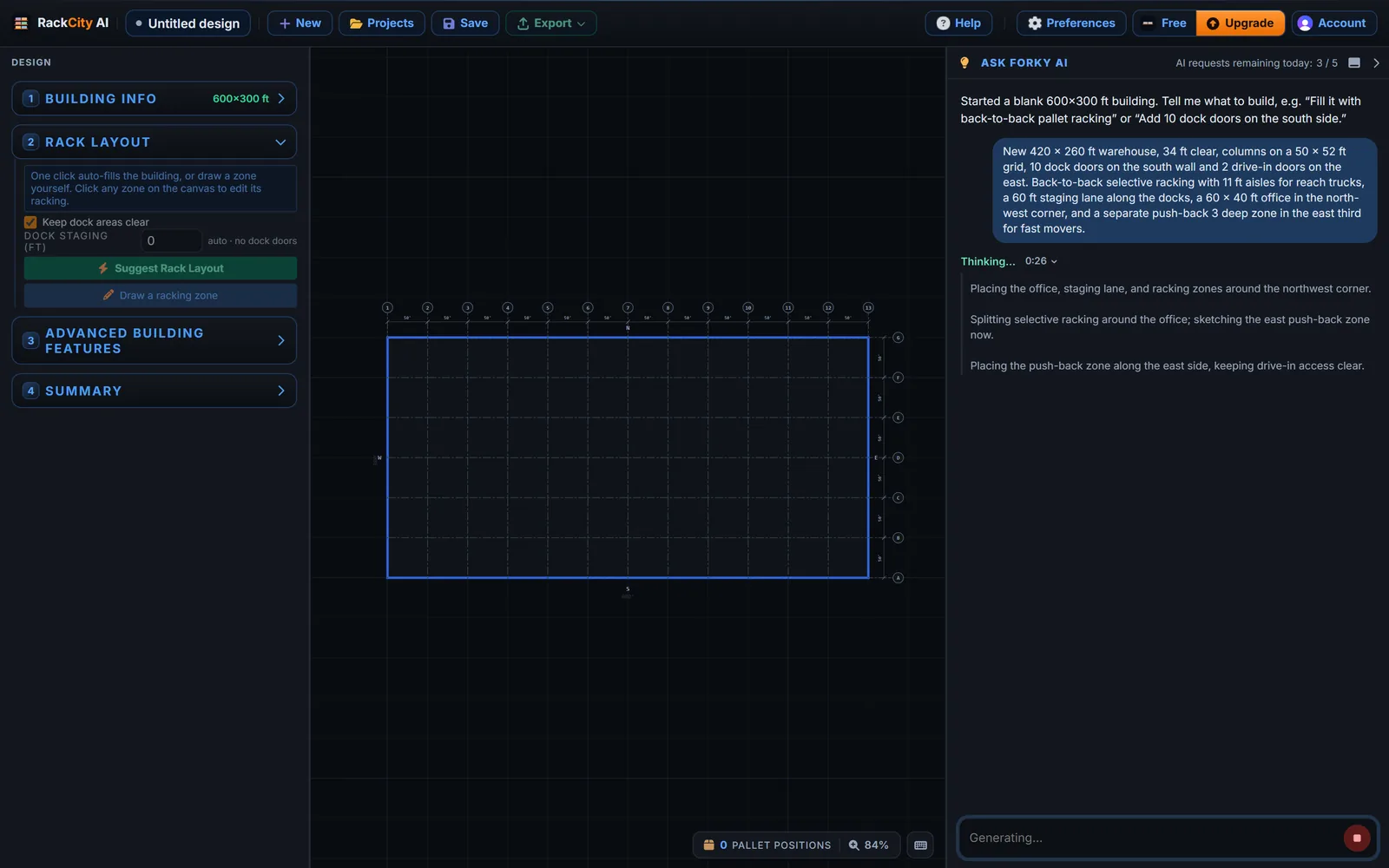
When Forky AI has finished, the panel folds away to "Thought for N s" — click it to read the lines again — and the design is drawn on the canvas as the reply types out beside it, so the words always describe what you are looking at. The lines are written in the language you wrote to Forky AI in.
Changed your mind? The Send button becomes Stop while Forky AI works. Press it and your design stays as it was. And if an answer ever runs long, Forky AI says so plainly instead of waiting forever, so you can try again or ask for a smaller change.
RackCity AI on Your Phone
On a phone, RackCity AI now has a layout of its own. The canvas fills the screen, the Forky AI chat sits along the bottom, and the toolbar keeps only the essentials — your project, Save and your account — with everything else behind one ⋯ menu: New, Projects, the PDF, DXF and Material List exports, Help, Preferences and your plan.
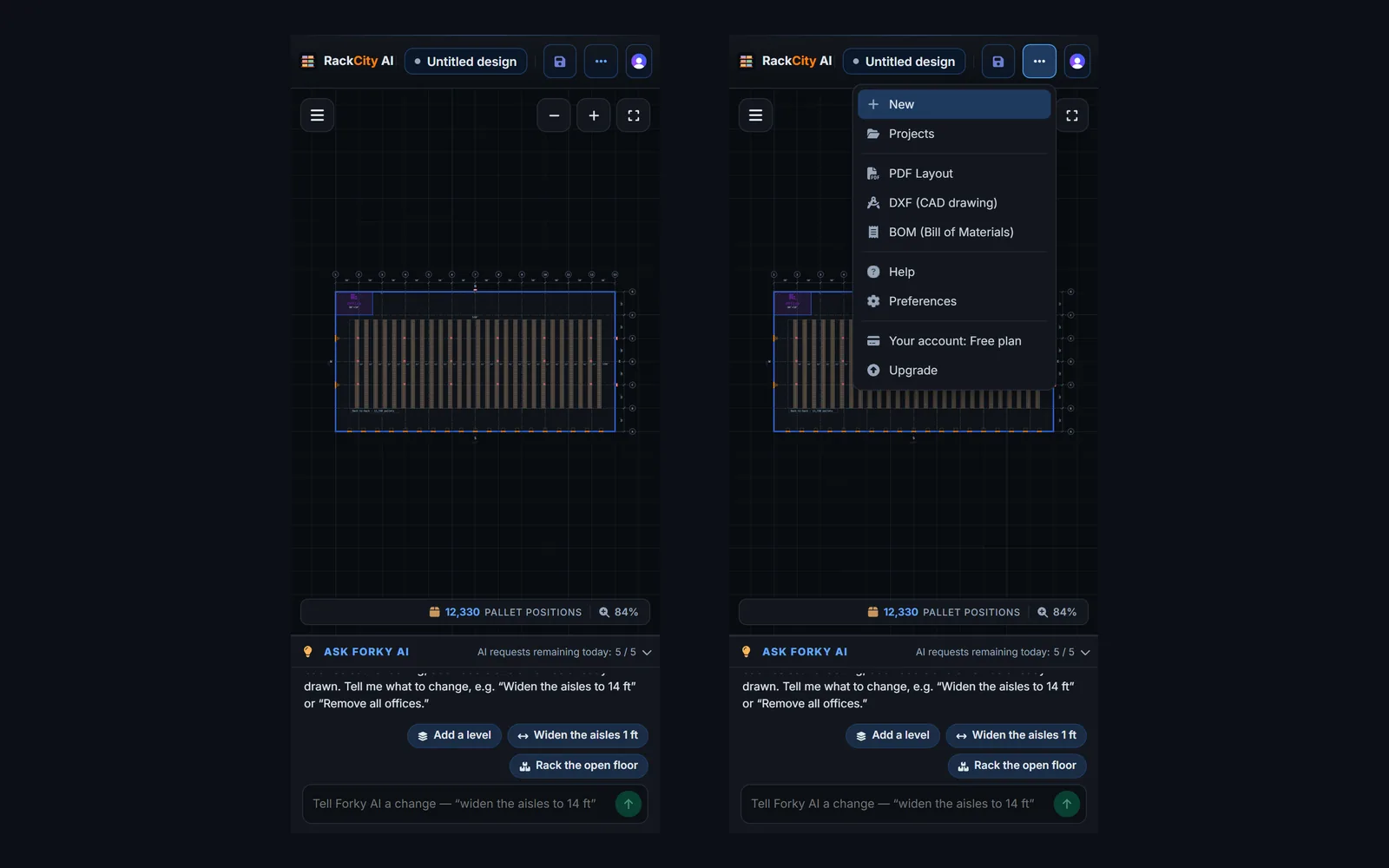
- Touch that works like a map. One finger pans, two fingers pinch to zoom, and a tap selects a zone.
- Add a zone by its numbers. Give it a distance from the west wall and the south wall, a length and a depth, and it lands exactly there.
- Forky AI does the drawing. Drawing new shapes by hand still needs a computer — on a phone, ask Forky AI to add, move or resize them instead.
On a desktop, a narrow window no longer wraps the toolbar onto two lines: the buttons that do not fit fold into the same ⋯ menu, Help first and Export last.
Forky AI Opens What You Ask For
Ask Forky AI how to do something, and its answer now ends with a chip that takes you there. Ask whether you can add wire decking and the answer carries Open decking; one click opens the zone's decking setting. There are chips for the beam levels, row spacers, column guards, the elevation and the 3D view, building features and doors, Building info, Suggest, drawing a zone, Measurement, Language and My Projects.
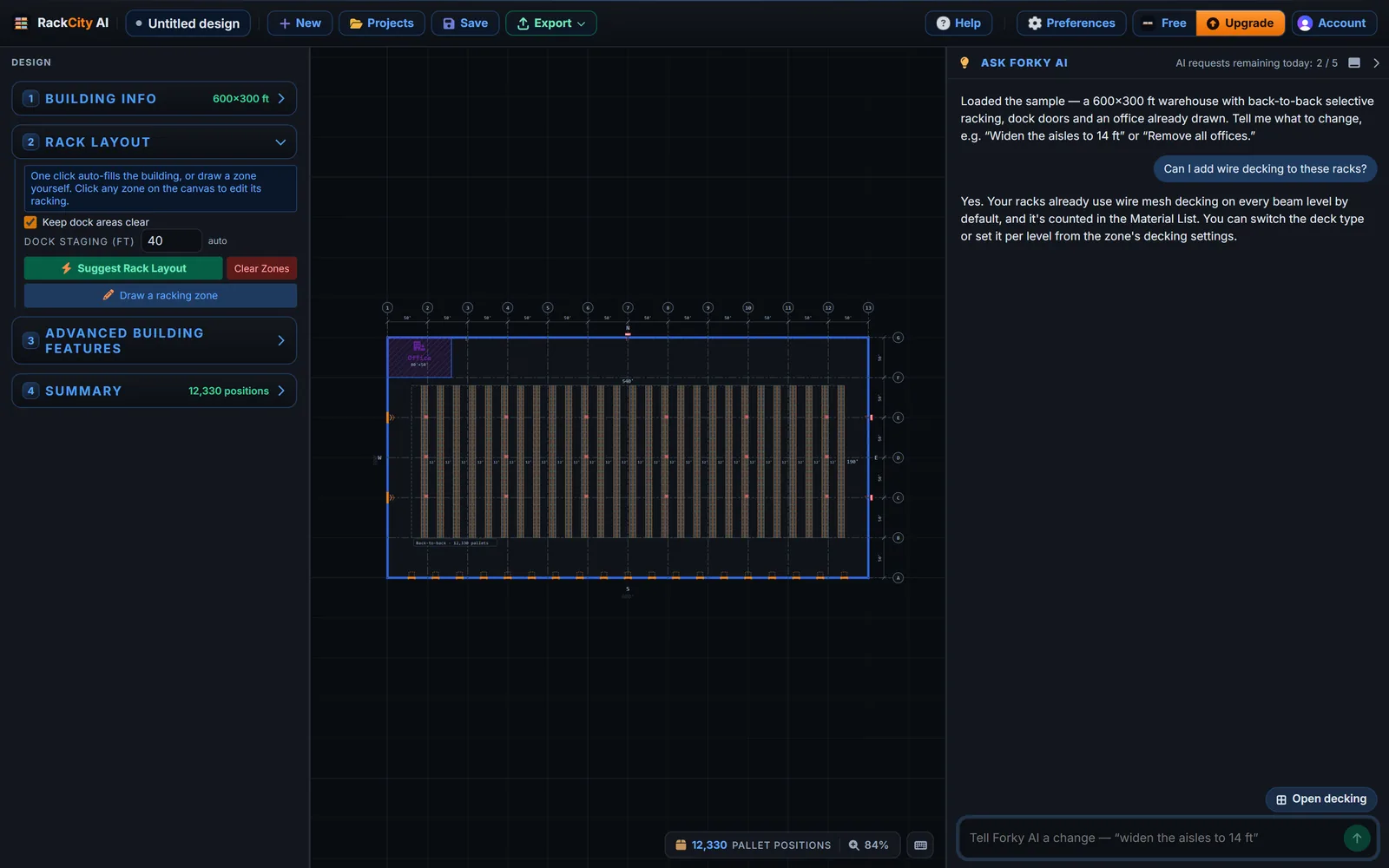
Ask for an export and the chip opens the export menu on it — Export the layout PDF, Export the Material List or, on Enterprise, Export the DXF — so you check the title block and press Export yourself. Nothing downloads without your click.
Smaller Improvements Worth Knowing About
- Forky AI quotes the app's own counts. When Forky AI tells you how many pallet positions or bays a layout has, it reads the same numbers the canvas shows, not an estimate.
- The chat follows the answer. The transcript stays on the newest line as Forky AI writes, until you scroll up to read; a round ↓ button jumps back to the latest.
- A cleaner chat box. One box with a round Send button, a box that grows to four lines as you type, and your AI requests left shown beside the title in the side dock.
- Stop works on floor plans too. A dropped floor plan or flyer shows the same Thinking panel and can be stopped the same way.
- My Projects opens wider. Picking a project opens its versions in a wide drawer beside a compact list.
Frequently Asked Questions
Does Thinking use more AI requests?
No. One answer from Forky AI is one request, the same as before. The thinking lines come with the answer; they are not extra requests.
Can I stop Forky AI while it is thinking?
Yes. The Send button turns into Stop while Forky AI works. Press it and Forky AI stops; your design stays as it was, and you can ask again or ask for something smaller.
Which language are the thinking lines in?
The language you write to Forky AI in. Ask in Spanish and the thinking lines and the reply come back in Spanish, whatever language the rest of the app is set to.
Does the phone layout work on a tablet?
A tablet gets the full desktop layout, with the sidebar and the toolbar, and works with touch. The phone layout is for screens narrower than 720 pixels, such as a phone held upright.