In this guide
What RackCity AI Does
RackCity AI draws pallet racking into a building and tells you what it holds and what it costs. You give it a footprint, place the racking, set the spec, and it hands back the three things a rack job runs on: a Layout PDF with the floor plan and an elevation drawing for every rack type (and, when the design has them, a Building Features sheet and a Mezzanine Level Plan), a Bill of Materials you can export as CSV or an Excel workbook, and a Pricing Summary PDF with the total and the cost per pallet position. It runs in the browser, in feet and inches or in metres and millimetres, and there is nothing to install.
The tools people use for this today are either far too much (AutoCAD, Revit) or far too little (graph paper, a spreadsheet with a formula someone wrote in 2014). RackCity AI sits between them: quick enough to sketch a building while the customer is still on the phone, and precise enough that the count and the parts list survive the contractor's walk-through. We build it, so read the rest of this page knowing that; the steps are the same ones a dealer takes with any tool.
Who It's For
Anyone who needs a racking layout today rather than next week:
- Rack dealers and distributors turning an enquiry into a drawing and a priced quote the same afternoon
- Warehouse managers and 3PL operators finding out how many pallet positions a building holds before they sign for it
- Industrial brokers answering a tenant's "how much fits in here?" with a layout instead of a guess
- Facility planners and engineers sketching options for a fit-out or an expansion before the real drawings start
- Owners setting up a first warehouse who want to understand what they are buying before a contractor tells them
If you have ever waited two days for a rack proposal, or counted positions on a hand sketch with a ruler, this is for you.
Step 1: Enter Your Building Dimensions
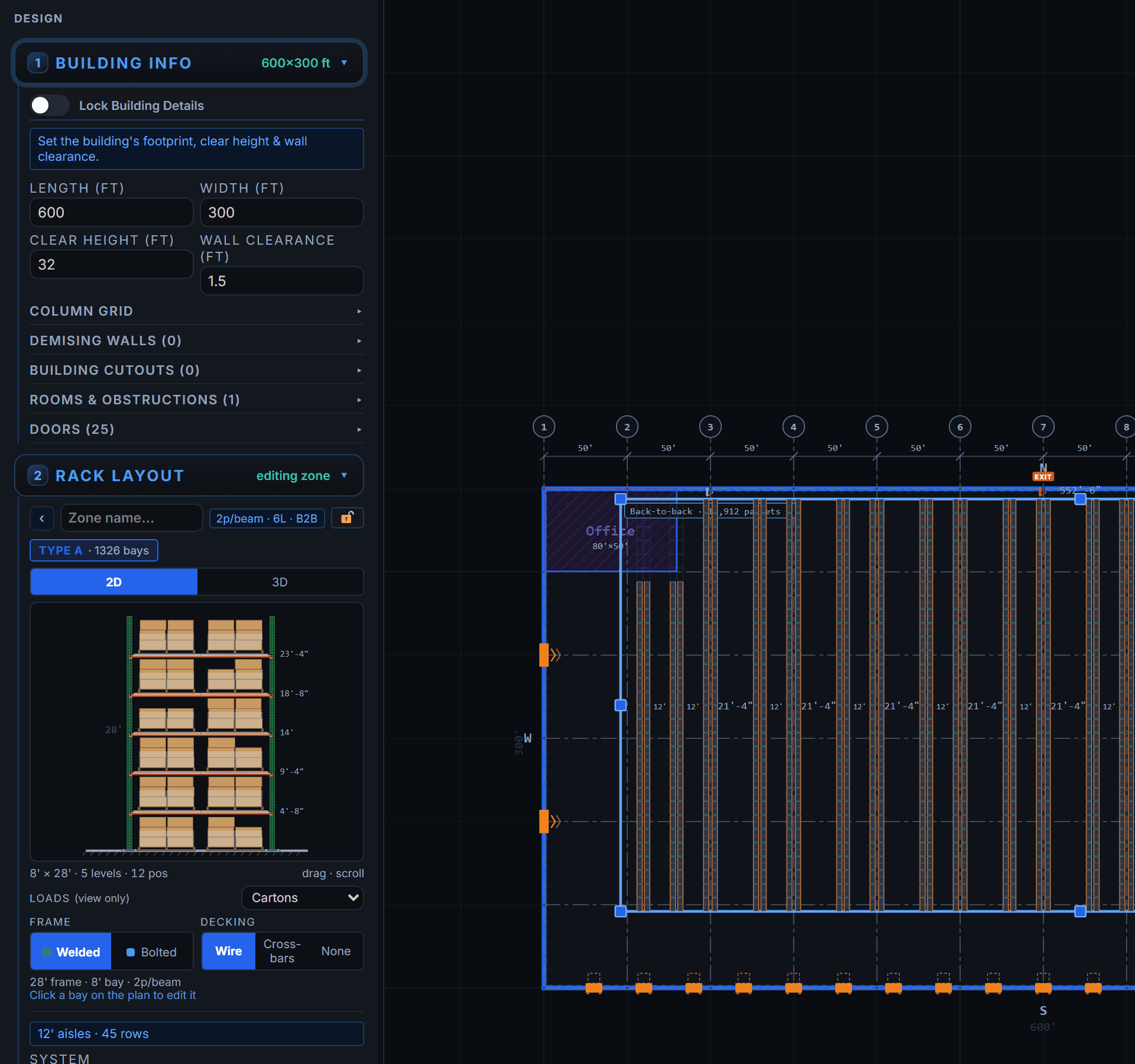
The app opens on a start screen with one question: upload a flyer or describe your warehouse. To do it by hand, choose start from scratch and type the building's length, width and clear height into the Building section of the left panel. The canvas draws the shell on a graph-paper background whose squares are a real measure at every zoom, so you can read distances off it directly.
Then add what the racking has to work around. The column grid is on by default: drag its bubbles to match the building's real centrelines, or paste the bay widths straight off the architect's drawing (60, 50, 50, 50, 40) to reproduce the uneven bays real buildings have. Draw dock doors along the wall they sit on, an office as a room with real walls, and the floor areas the racks work around — a demising wall, an obstruction (a compressor pad), a staging strip in front of the docks, a pick-and-pack area, a mezzanine footprint with its stairs, or a cold room the racking goes inside.
If the landlord or broker sent a flyer or a plan — a PDF, or a photo or screenshot of it — drop it on the start screen instead of typing. Pick the plan page (a one-page PDF or a photo is picked for you) and use the note to ask for racking — "fill it with back-to-back racking, reach trucks" — and to settle what the sheet leaves open ("the 120,000 sq ft unit, not the whole park"). RackCity AI reads the dimensions, dock count and column grid off the page and racks what the plan draws or the note asks for; otherwise it returns the building with a one-click Fill with back-to-back racks. It is the shortest route from "a customer emailed me a flyer" to "I have a position count and a quote".
Step 2: Add Racking Zones
A zone is a rectangle of floor with one rack spec. Draw one by dragging on the canvas, then pick the rack type in the panel:
- Single-deep selective — one row, one pallet deep, served from one aisle. The row against a wall.
- Back-to-back (B2B) — two selective rows joined by row spacers, sharing one aisle per pair. Most of most floors.
- Double-deep — two pallets deep per position, for a reach truck with a pantograph. Density for stock that moves in full lots.
A building can hold as many zones as it needs, each with its own rack type and spec, and each reports its own position count. RackCity AI places the rows inside the zone for you at exactly the aisle width you set; if the depth doesn't divide evenly, the leftover is drawn as a dashed OPEN band with its width, not smeared into the aisles.
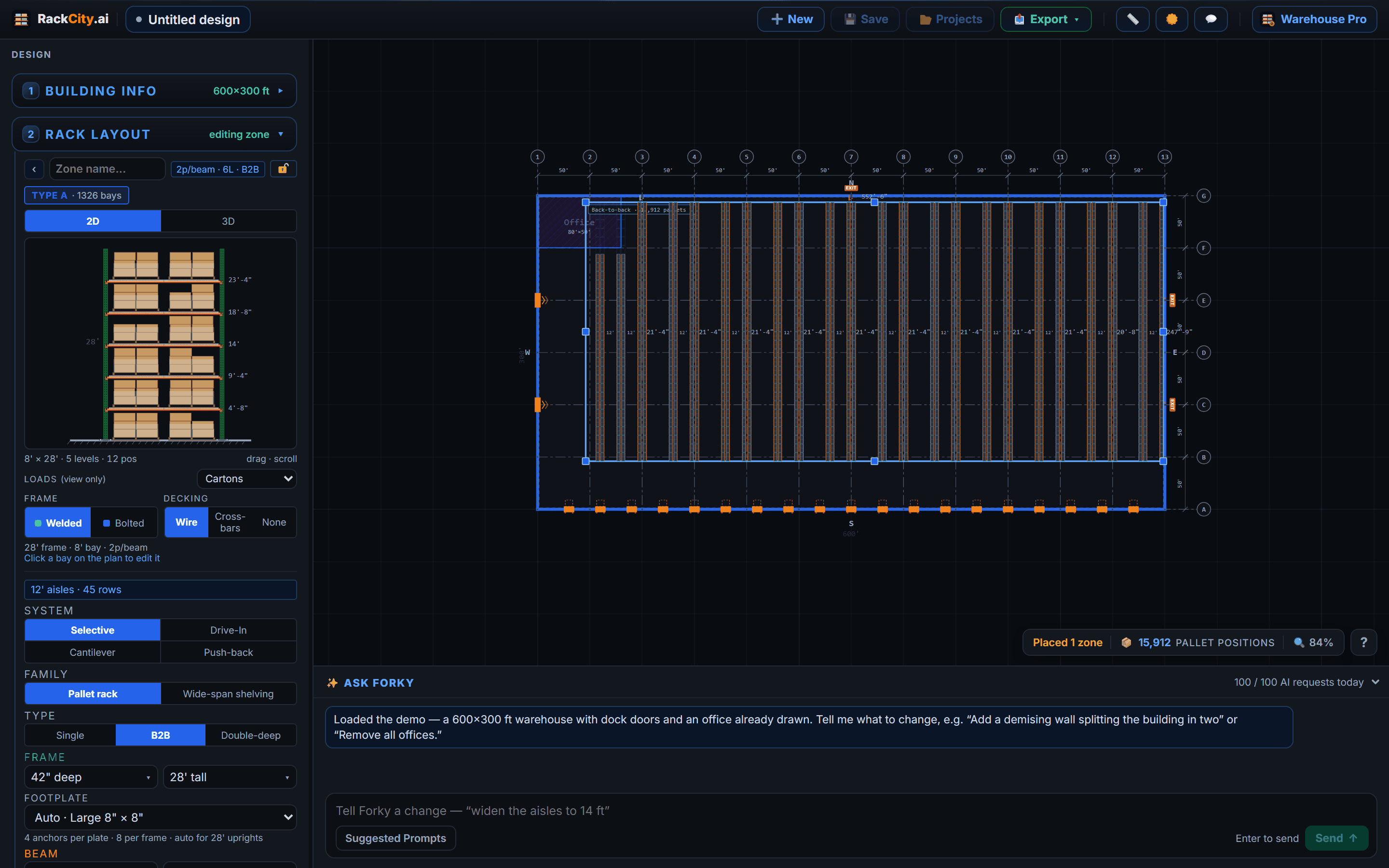
Instead of drawing zones, describe the building to Forky AI in the dock at the bottom of the canvas: "400 × 250 ft warehouse, 30 ft clear, back-to-back racks with 12 ft aisles, 8 ft beams, docks on the south wall." It drafts the whole layout — shell, zones, rack spec, position count — and you take it from there. Suggest Layout (⚡) does it without the AI: an empty floor is racked with the settings on screen, a staging strip kept clear in front of each dock door; on a racked floor it adds a zone beside the racking, or offers a fresh layout you can take or decline.
Step 3: Configure Rack Parameters
Click a zone and the panel opens to its settings. The ones that move the count:
- Beam length — sets the bay width and the pallets per level: 8 ft for two 48 × 40 in pallets, 12 ft for three; 2,700 mm for three Euro pallets
- Beam levels — how many beam pairs each bay carries above the floor position
- Frame height and depth — the upright; height is checked against the clear height and drawn on the elevation, depth follows the pallet (42 in for GMA, 1,100 mm for Euro)
- Aisle width — the width the forklift needs between rack faces, and the single biggest lever on the count after height
- Pallet — GMA, Euro, industrial or your own dimensions and loaded height, which sets the beam spacing
Every one of those dropdowns is a real catalog you can type into: type 27 in Beam length and the list narrows to 2,700 mm; type a length that isn't in the catalog and it is accepted exactly as typed, so a vendor's odd beam is one keystroke away. Switch the units dropdown on the toolbar between Imperial and Metric and every field, label and export follows without changing the design underneath.
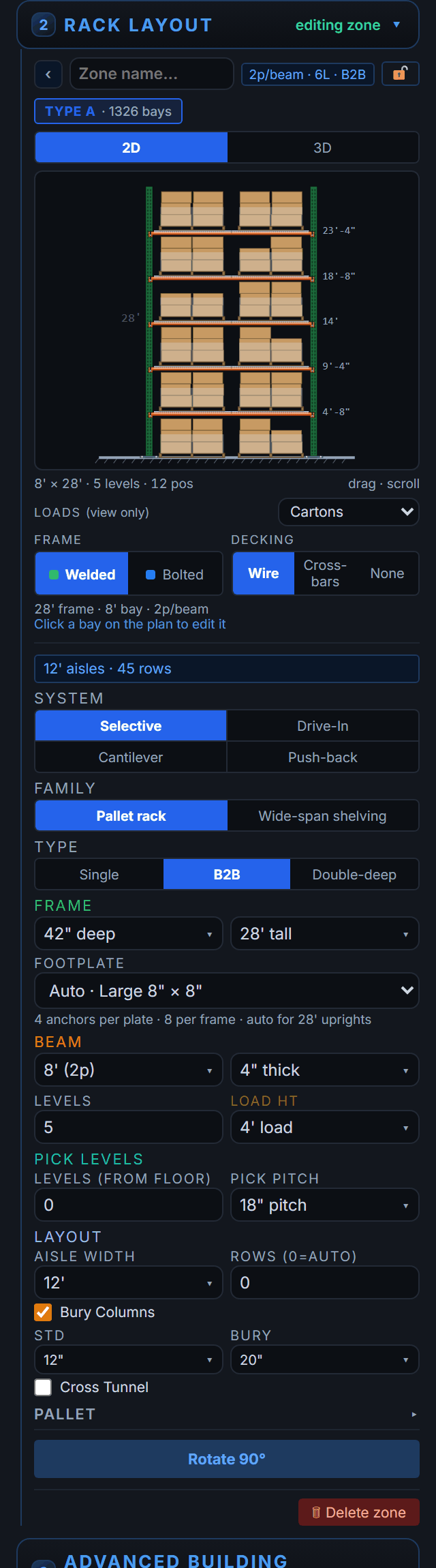
Because the count is live, the questions that used to take a redraw take a click: five levels instead of four, 9 ft aisles instead of 12, three-pallet beams instead of two. Try each and read the number.
Step 4: Refine the Layout
The first layout is rarely the last one. The tools for the second pass:
- Drag zones around the footprint; they snap to the column grid, and rows re-place inside them
- Bury Columns — on, and the rows shift so the building columns land in the flue between back-to-back pairs; off, and the rows pack to your exact aisle and the inspector flags any column left in an aisle or a row
- Edit a bay — click any bay to open it, change its beam length, levels or frame height, and apply that to every bay of the same type. This is how one client's oversize crates get 10 ft beams on the last bays of a row without touching the rest
- Cross tunnels and dead bays — open a bay at floor level to let trucks through a long row, or remove a bay where a dock door or a column makes it unusable
- Ask Forky AI — "tighten the aisles to 10 ft", "make the back zone double-deep", "add a 30 × 40 office in the north-west corner". It edits the design you have rather than starting over, and it remembers the flyer you uploaded
Every change flows through to the position count, the drawings and the bill of materials at once. There is no "regenerate" step to forget.
Step 5: Export Your Outputs
When the layout is right, the green Export button on the header holds both outputs: PDF Layout and BOM (Bill of Materials). Exports need an account and a paid plan: Solo adds watermarked exports, and Warehouse Pro adds clean exports. A Free account lets you Save a cloud project — every save is a version you can reopen, and every export is attached to the version that produced it, so the drawing and the quote a customer saw are still there in My Projects six months later.
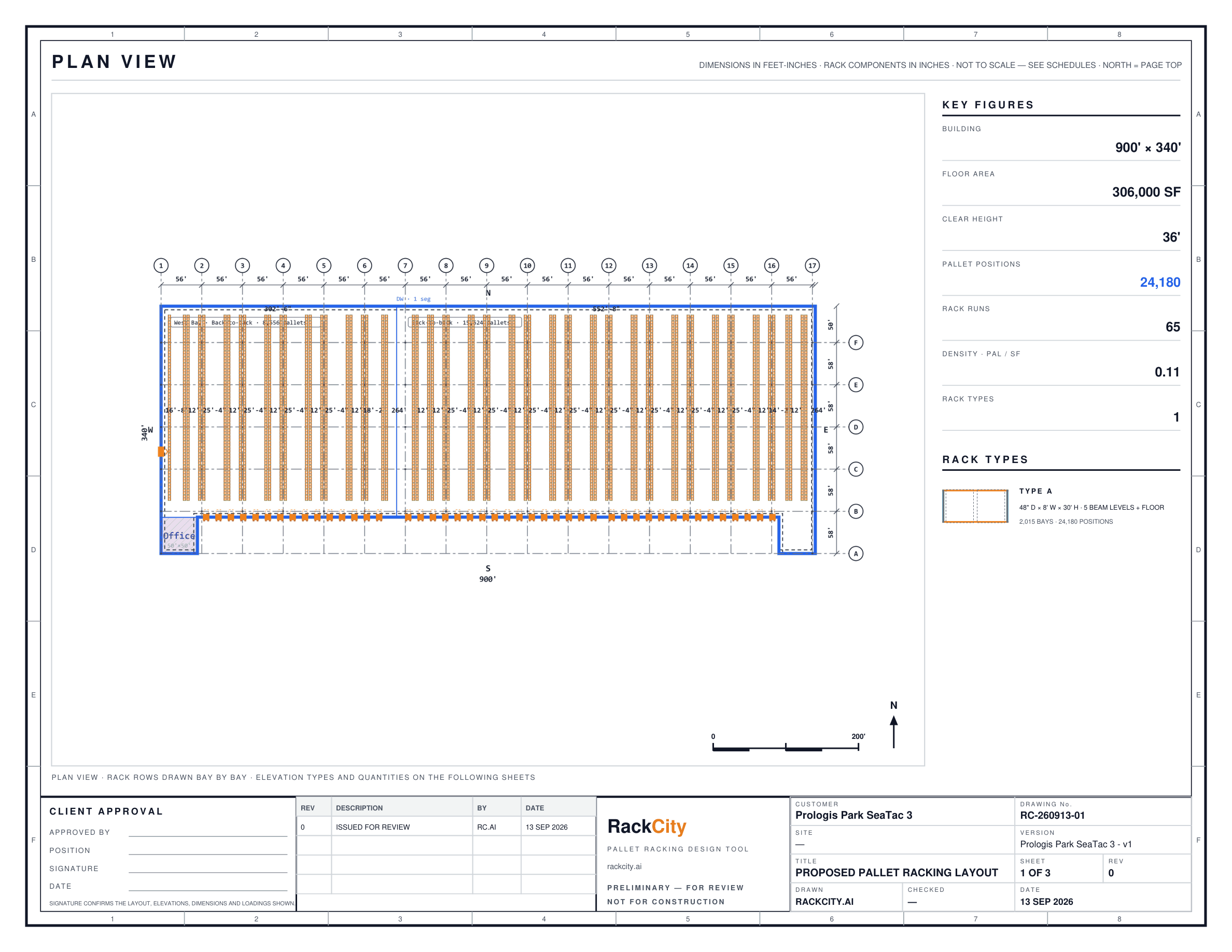
Layout PDF: the floor plan
The first page is the top-down plan: the building shell, the column grid, every rack zone with its rows and aisles dimensioned, dock doors, offices and walls, and the pallet-position count per zone and in total, stamped with the units it was drawn in. It is the sheet for:
- Landlord and tenant approval packages
- Coordination with the general contractor and the sprinkler designer
- A permit pre-application, before the engineer's stamped set
- Internal reviews where someone needs to see the floor, not a spreadsheet
Layout PDF: elevation drawings
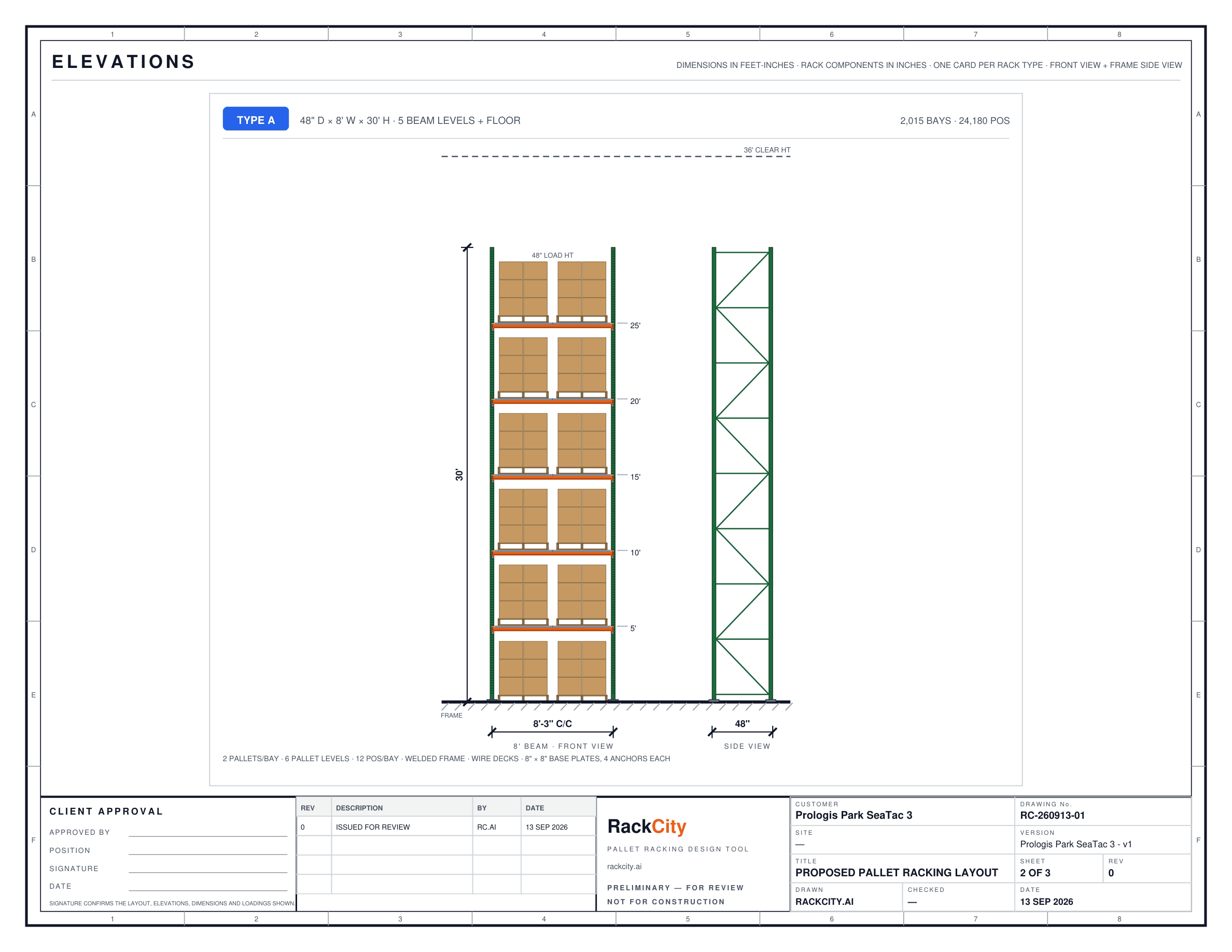
The same file carries an elevation page for each distinct rack type in the design — a bay seen from the aisle with the upright frames, every beam level with a pallet on it, and the heights dimensioned. If two zones share a spec they share an elevation; a bay you edited gets its own. These are the drawings for:
- The rack supplier's shop drawings
- Load-sign reference, alongside the engineer's capacity calculations
- The permit package
- The installation crew's reference on the floor
BOM and Pricing Summary
BOM (Bill of Materials) opens the Material List: every component the layout needs, counted from the drawing:
- Upright frames, grouped by height and depth, with their footplates
- Beams, by length and by how many levels each bay carries
- Wire decks, matched to the beam length
- Row spacers for the back-to-back pairs, and anchor bolts per frame
It opens already priced from the $ per pallet position target (it starts at $85); change the target and press Fill prices to re-spread, or type supplier prices over any line. Add the fee lines a real quote carries (freight, installation, engineering and permits), and export it three ways: a CSV for a purchasing system, an Excel workbook you can send as it is, or the Pricing Summary PDF — the priced list, the fees, the total and the cost per pallet position, formatted for a customer. Each downloads to your computer and, with a project open, is saved to that version.
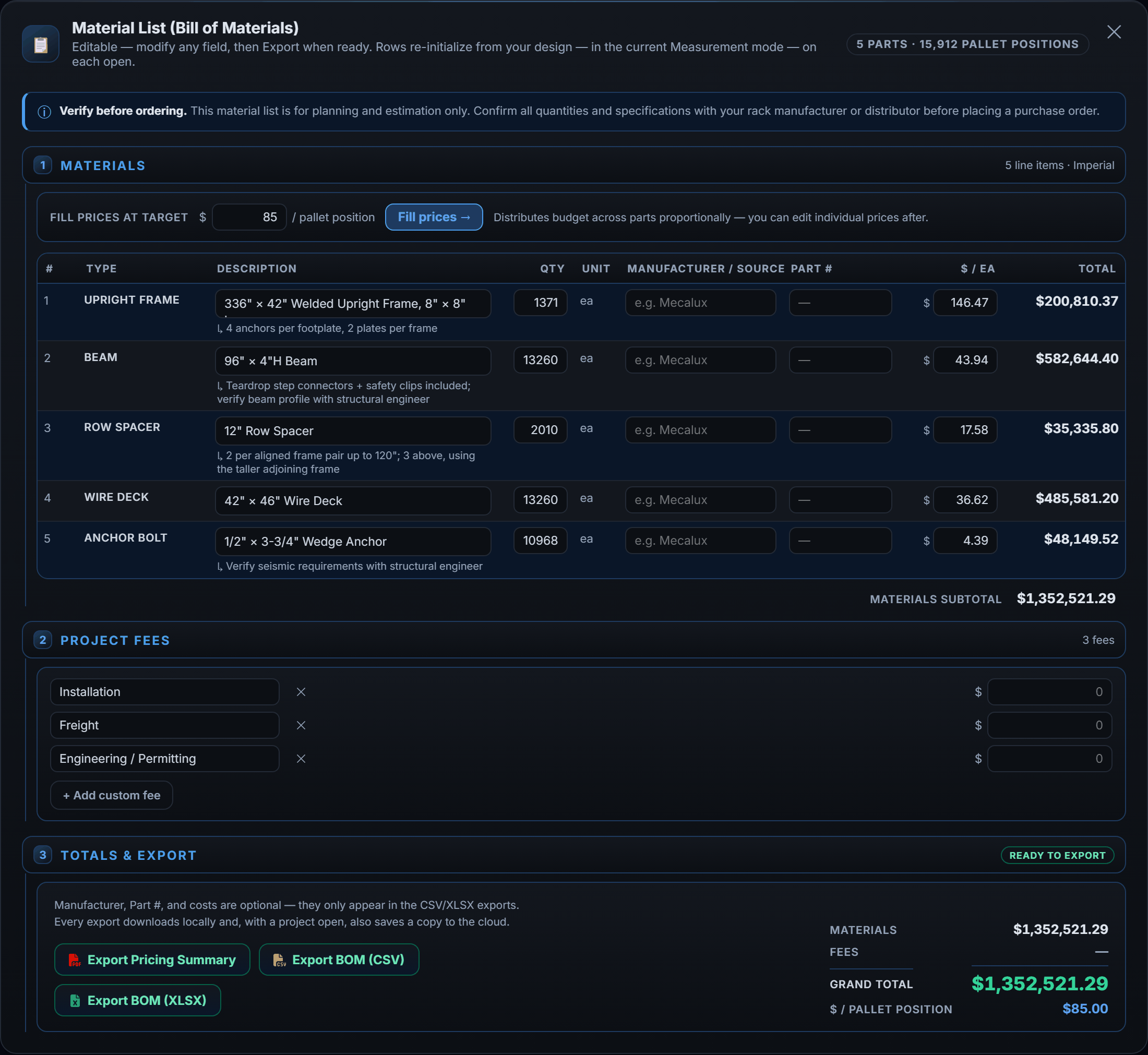
Before you have supplier prices, the list is already priced: a target all-in figure — it starts at $85 per position — spread across the material lines in proportion. Change the target and press Fill prices to re-spread it. A rough but honest quote with nothing typed, ready to be replaced line by line when the real numbers arrive.
Frequently Asked Questions
What is pallet rack layout software?
Software that draws a warehouse racking layout on a canvas, counts the pallet positions and exports the drawings and the parts list — so a dealer, a warehouse manager or a broker can size a building and price the racking without AutoCAD or an engineer at the sketch stage. The engineer still stamps the final set; the software gets you to the point where that is worth paying for.
How long does it take to design a warehouse racking layout?
By hand in RackCity AI, five to ten minutes from an empty canvas to an exported floor plan. Describing the building to Forky AI, or uploading its flyer, gives you a first draft in under a minute; the rest of the time goes into the second pass — aisles, tunnels, the odd bay — which is where the judgement is anyway.
Can I export my warehouse design to PDF?
Yes. The Layout PDF carries the dimensioned floor plan and an elevation drawing for each rack type, and, when the design has them, a Building Features sheet and a Mezzanine Level Plan; the Bill of Materials exports as a CSV, an Excel workbook, or a Pricing Summary PDF with unit prices, fee lines, the total and the cost per pallet position. Exports need an account and a paid plan: the Solo plan's carry a RackCity AI watermark, Warehouse Pro's are clean. With a project open, each export is also saved to that version so you can download it again from My Projects.
Does RackCity AI work without CAD experience?
Yes. It is built for the people who sell, run and lease warehouses rather than for drafters: the canvas is click-and-drag, the rack settings are dropdowns from a real catalog, and Forky AI will draft or change a layout from a plain-English sentence. If you can describe the building, you can draw it.
How accurate are the pallet counts?
The count is computed bay by bay from the beam length, pallet dimensions and clearances you set, minus the positions lost to columns, doors, offices and tunnels — it is the same arithmetic a rack supplier does, done for the whole floor at once. What it can't know is what is actually on site. Verify the building dimensions, the column positions and the clear height before anyone orders steel; the Pricing Summary says so on its face.
Can RackCity AI generate a warehouse layout from a PDF or with AI?
Yes, both. Describe the warehouse in a sentence and Forky AI drafts the building and the racking; or upload a building flyer (a PDF, or a photo or screenshot of the plan), pick the plan page and RackCity AI reads the dimensions, docks and columns off it, racking it in the same pass when the plan draws racking or your note asks for it. Either way you then edit by hand or by asking. The Free plan includes a limited number of AI requests; Solo and Warehouse Pro give 20 and 100 a day.