In this release
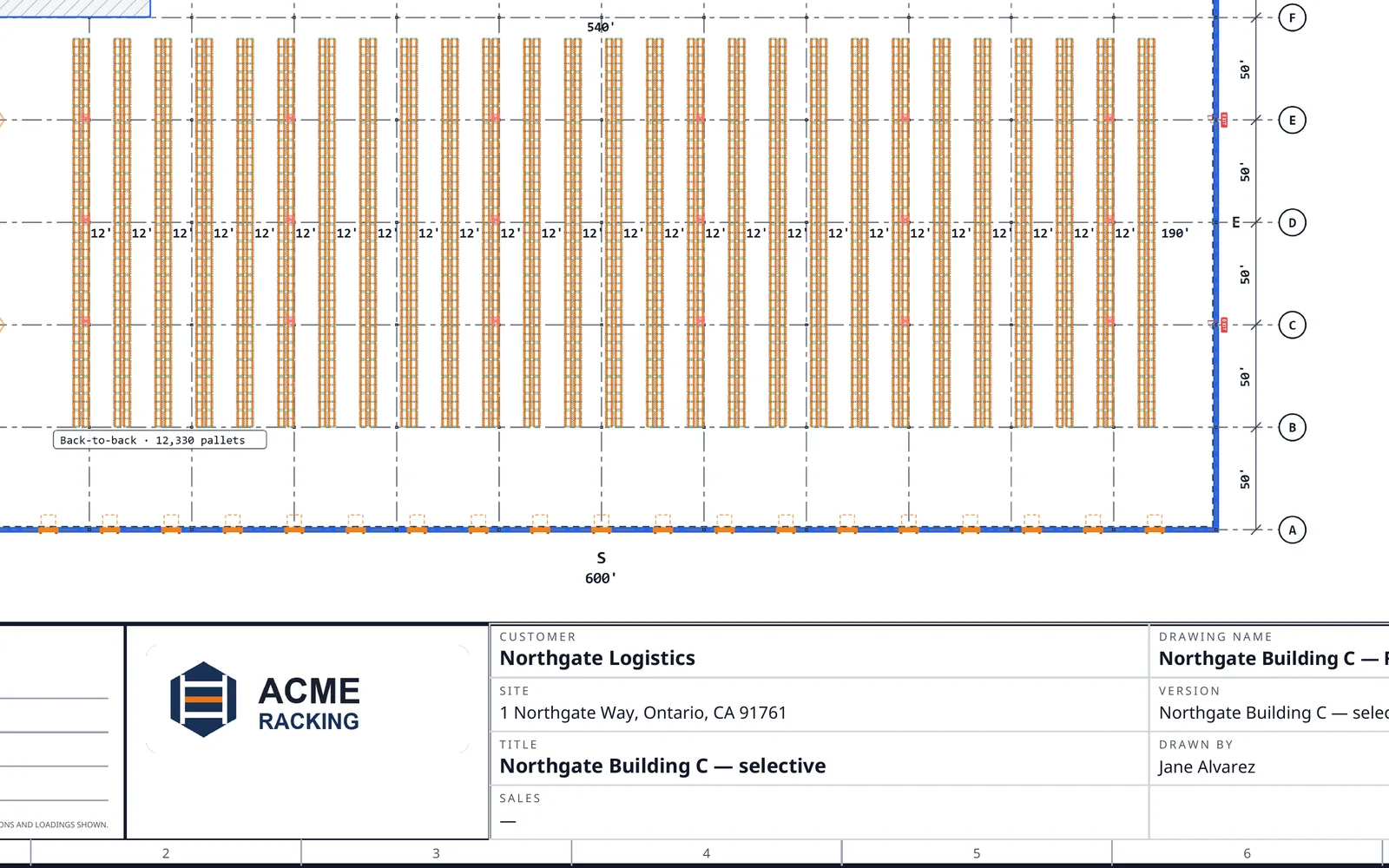
A rack sales team does not hand a customer a RackCity AI drawing. It hands over its own: its logo in the corner, its drawing name and its salesperson in the title block, the guards and backstops it sells counted on the quote, and a CAD file its engineers can open. Until now RackCity AI drew the racking; the paperwork around it was yours to redo.
v1.8.0 closes that gap. Enterprise puts a whole sales team in one organization, under its own brand, with projects filed by customer and a DXF for CAD. The rack panel specs the whole bay — bracing, accessories, decking and loads level by level — and every count lands on the Material List. And every export prints a title block the way a dealer's drawings read, on sheets up to ARCH D and A0.
Enterprise for Rack Sales Teams
Enterprise is the plan for a rack manufacturer's or distributor's sales team. The Organization page holds everything about the team on one page of cards: an admin renames the team, uploads its logos, invites people by email with a role, changes a role or removes a member, and picks who sees team projects. A member sees the same page read-only.
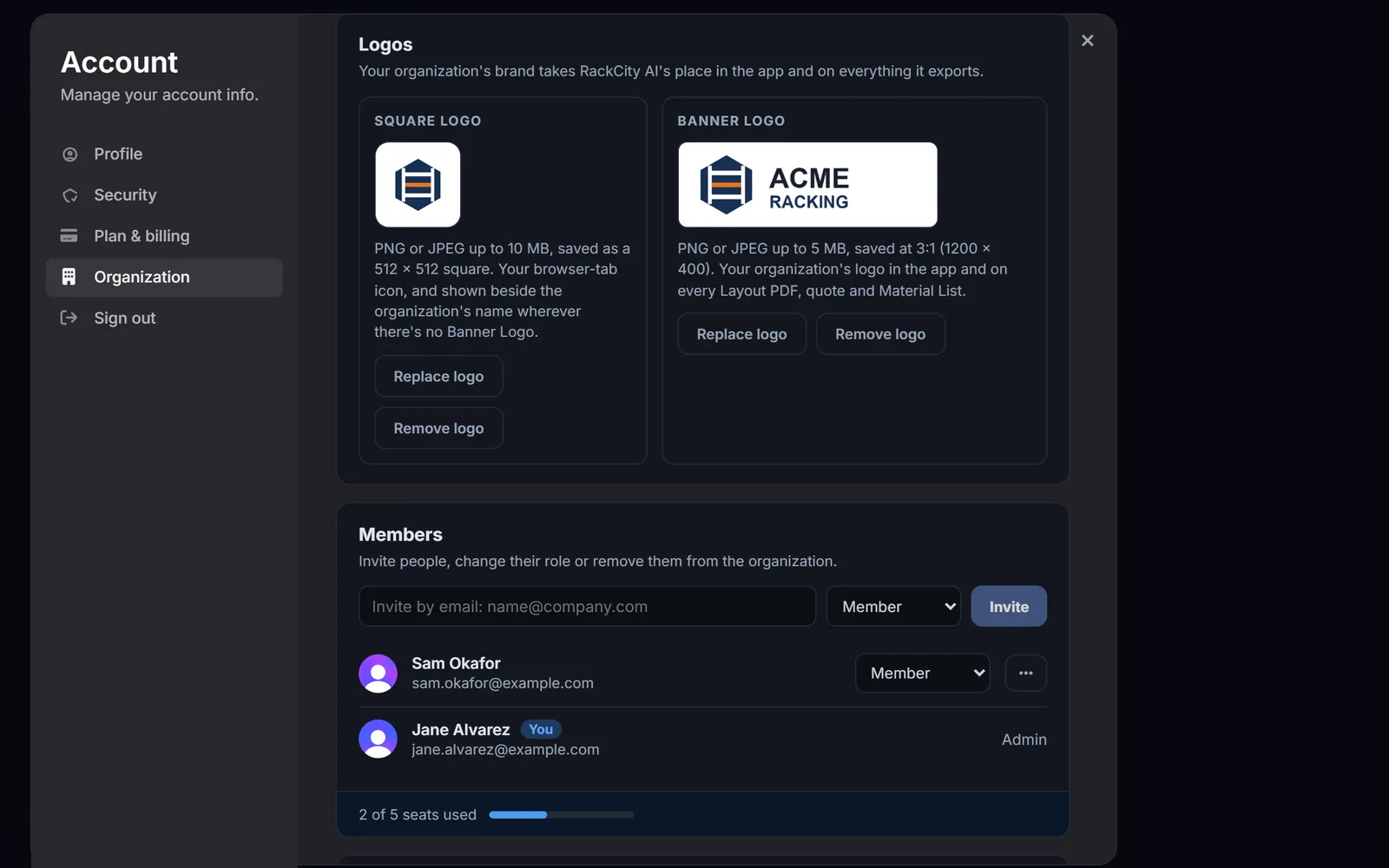
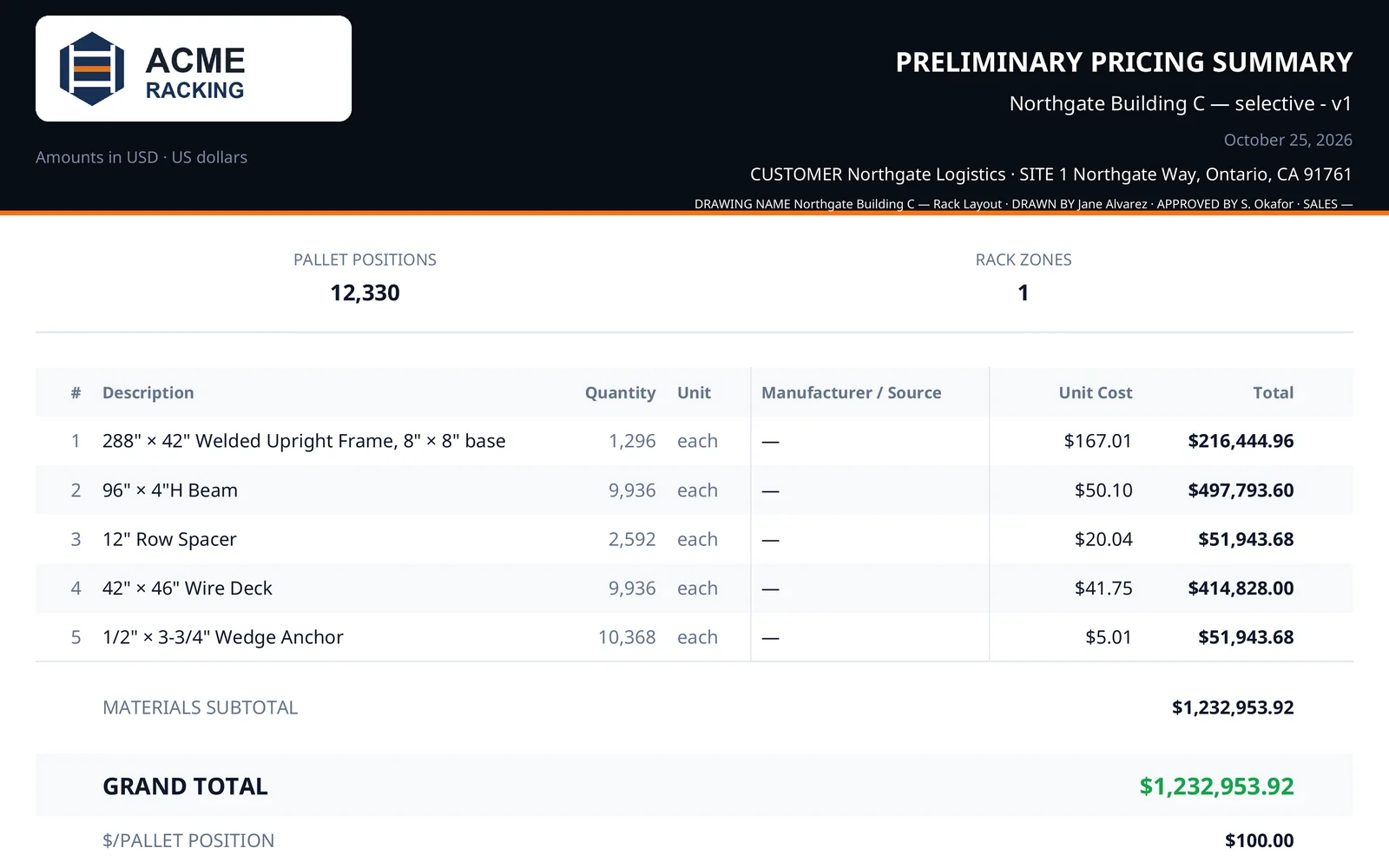
The app and every export wear the team's brand. For a team member the top-left lockup becomes the team's logo and name, and the browser tab reads the team's name. The Layout PDF and the pricing summary carry the team's wide logo where the RackCity AI wordmark stood, the Material List spreadsheet opens with the team's name, and the DXF's title is signed by the team.
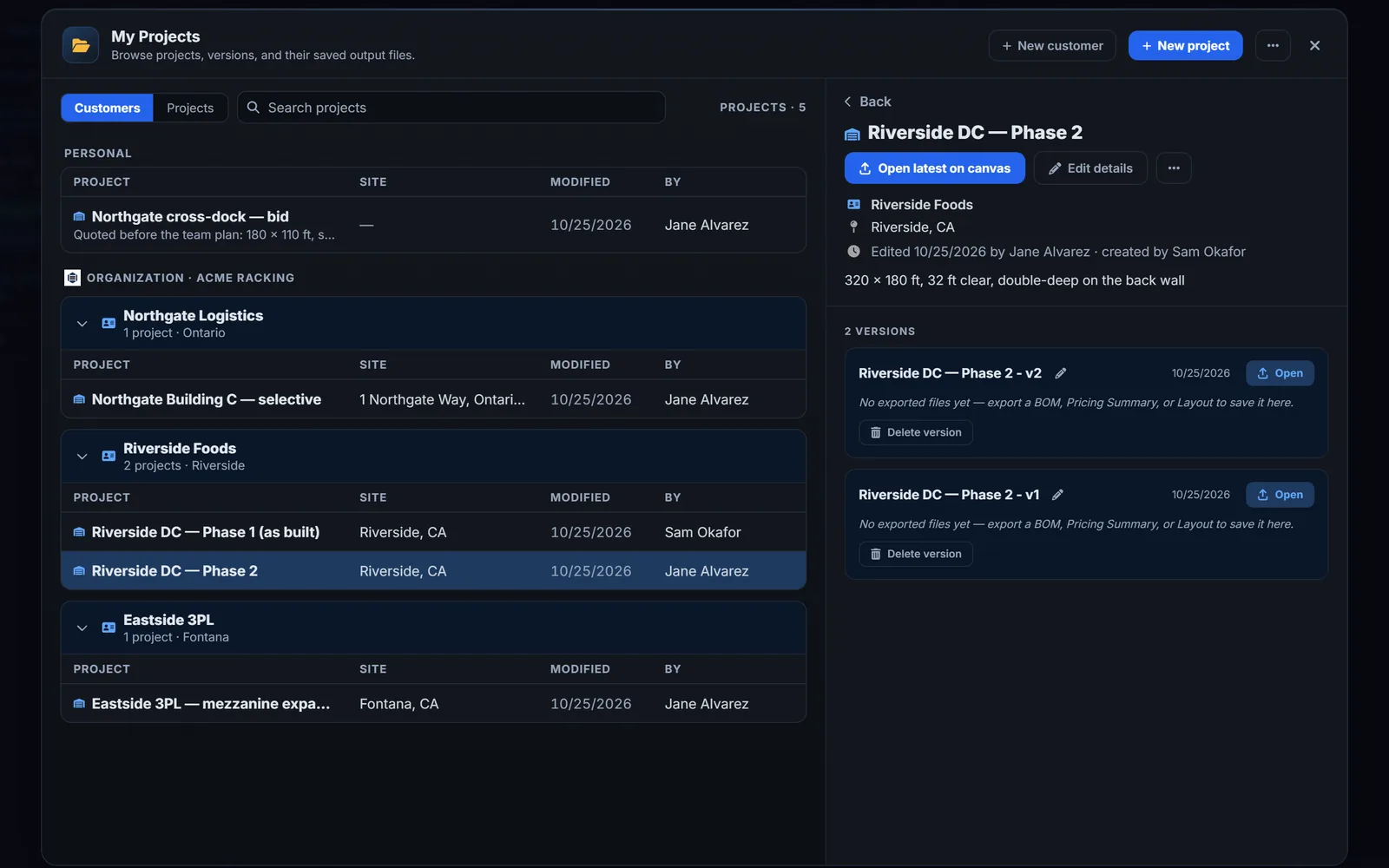
Projects are shared with the team and filed by customer. A customer — a name, a primary contact and an address — holds every project the team draws for that company, and My Projects is a table you can search or group by customer, with a drawer for each project's versions and a Recently deleted list that keeps what you delete.
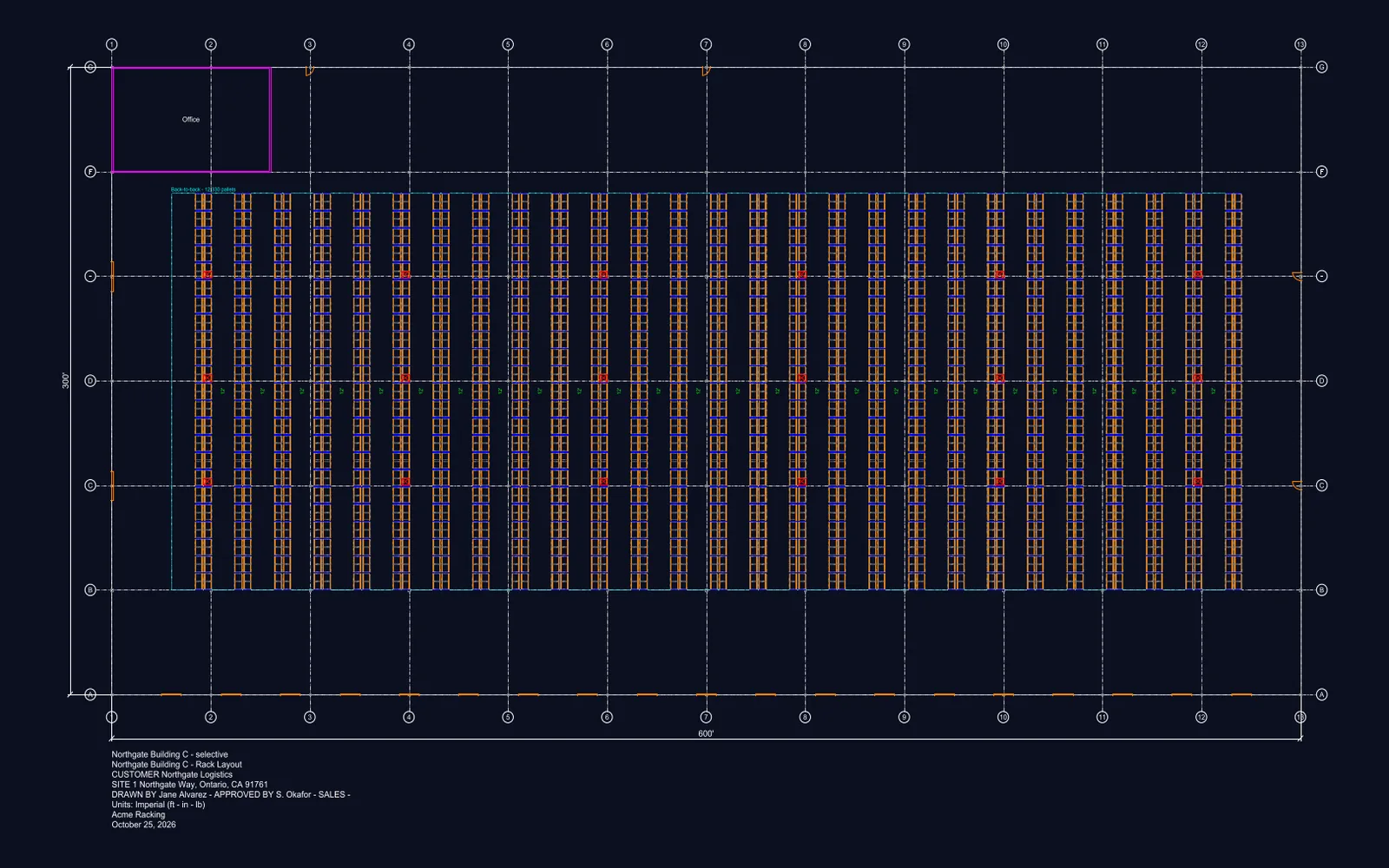
The plan view exports as a DXF that opens in AutoCAD, DraftSight or LibreCAD: the building and its doors, columns and grid, every zone's rack rows, aisle widths, the overall dimensions and the title block, on named layers, in inches under Imperial and millimetres under Metric.
Each quote also prints the team's own pricing summary, in the team's brand:
A Rack Panel That Specs the Whole Bay
A selected zone now opens in three tabs: Zone, Bay and Accessories. Zone holds the system, the row type, Rotate 90° (or press R), aisles and rows; Bay holds what every bay is built from — frames and beams together, lanes, loads, pick and flow — with the everyday settings up front and the steel details folded away. Each warning sits on one line beside the setting that answers it, with a fix one click away: "Too tall for these levels — 48" fits", then Use 3 levels or Space beams to fit.
- Frame bracing and backers. Even or custom panel heights, horizontals at every node or top and bottom only, doubled diagonals and horizontals for high seismic areas, and column backers on the front and rear posts. The Material List names them on the frame's own line.
- A Side view of the frame. The drawing toggles Front | Side | 3D. The Side view draws the frame's own plane — a back-to-back pair with its flue, a single row, double-deep, wide-span or a push-back lane — with the bracing, the loads and their overhang and the clear height; click a panel to double it or set its height.
- Accessories, counted from the layout. Column guards, end-of-aisle protectors, backstops, rack mesh, ties, load signs and location labels, each with its options and its count ("216 = 54 tunnel bays × 4 columns"). Everything starts off; Turn on the usual set switches on the common ones at once, and every count is a priced Material List line.
- Decking and backstops, level by level. Wire decks on the lower levels and cross-bars up top, say, with a backstop per level and a floor stop on the slab.
- Different loads in one bay. Each level can take its own load height and pallet, turned if you like, and Space beams to fit sets every beam on the upright's holes with the lift-off each level needs.
- The clear height on the drawing. The elevation draws the ceiling as a red dashed line and tints a rack that rises past it.
Drawings That Read Like Yours
Every export prints the same title block — the Layout PDF, the pricing summary, the Material List spreadsheet and the DXF: customer, site, your own drawing name, the version and its date, drawn by, approved by and the salesperson. You type them where the project is filed, and RackCity AI asks once per version before its first export, so nothing goes out blank by accident. An Enterprise team's admin can add a drawing notice — one sentence printed under the logo on every export.
Sheets up to ARCH D and A0. Preferences' Paper size is now two settings: Document sheet size for the pricing summary and Drawing sheet size for the Layout PDF, which follows the document size until you pick one. Both offer Letter, Legal, Tabloid (11 × 17), ANSI D (22 × 34), ARCH D (24 × 36), A4, A3, A2, A1 and A0, and a larger drawing sheet gives the plan and the elevations the room — and fits more Material List rows on each schedule sheet.
Smaller Improvements Worth Knowing About
- Exported amounts add up. The Material List, its CSV and XLSX and the pricing summary round each line to your currency's decimals before adding, so a column always matches its subtotal.
- Metric wire decks are made to the bay. A 2700 mm beam with three Euro pallets takes three 880 mm decks, one per pallet position.
- Row spacers on tall frames. A back-to-back pair over 18 ft takes four row spacers per frame pair, and the count can be set per zone.
- Sign out asks first, and offers Save and sign out when you have unsaved work. Escape closes the window on top.
- Delete your account in the app, under Account → Security, with 30 days to change your mind.
- Sign-in and account screens are easier to read in dark mode, and disabled buttons stay legible.
Frequently Asked Questions
What is RackCity AI Enterprise?
The plan for a rack manufacturer's or distributor's sales team. Everyone on the team works in one organization: an admin invites people with a role, the app and every export carry the team's logo and name, projects are shared with the team and filed by customer, and the plan view exports as a DXF for CAD. Seats are bought through sales; the details are at rackcity.ai/enterprise.
Are the new rack panel and accessories on every plan?
Yes. The Zone, Bay and Accessories tabs, frame bracing, the Side view, accessories, decking per level and loads per level are on every plan, Free included, and every count they add lands on the Material List. The drawing-set exports that print them are what Solo and Warehouse Pro add.
Do my saved designs change?
No. A saved design opens as it was. Every accessory starts off, so no Material List changes by itself; 'Turn on the usual set' switches on guards, protectors and signs in one click when you want them. Bracing starts as the frame was before, and a level keeps its load until you set one per level.
What does the title block print?
The customer, the site, your own drawing name, the version, the date, drawn by, approved by and the salesperson — the same values on the Layout PDF, the pricing summary, the Material List spreadsheet and the DXF. You type them where the project is filed, and the app asks once per version before its first export. An Enterprise team can add its own drawing notice under the logo.
Which sheet sizes can I print on?
Letter, Legal, Tabloid (11 × 17), ANSI D (22 × 34), ARCH D (24 × 36), A4, A3, A2, A1 and A0. Preferences has two settings: Document sheet size for the pricing summary and Drawing sheet size for the Layout PDF, which follows the document size until you pick one.